


Language support
English is the default language hila uses for questions and answers. You can change the language for interactions to one of the supported languages. However, the language of hila’s general user interface remains in English.
When you choose a non-English language for interactions, answers from hila will return in that language. You can, however, ask questions in any supported language.
Supported languages
Japanese is currently the only language supported for interactions other than English.
Change the language
System-wide language setting
Open the Raw Config Values window as described in Raw config values.
-
In the search box, search for user_preferred_language.
-
Hover your mouse over the row with the user_preferred_language name and click the pencil icon to edit the value.
-
In the Edit Value window, click Open Editor.
-
Set the value to the language you want to use for interactions. English is default, Japanese is the other supported language.
-
Click Save Changes to save the value.
-
Click Save Changes in the Edit Value window to save the change.
User-specific language setting
When setting the language for interactions, a user-specific setting overrides the system-wide setting.
-
Open the hila monitoring app.
-
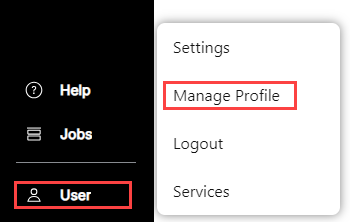
In the Monitoring window, click User in the bottom-left of the screen, and then click Manage profile.
-
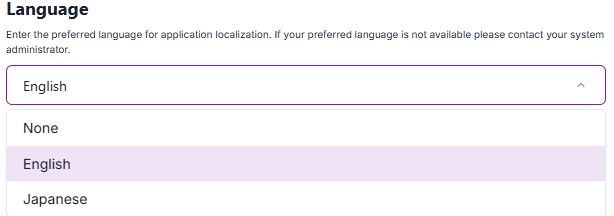
In the Language profile, select the language you want to use for interactions.
After you have set the user preference, you can make any changes in the future with this pulldown.
-
Refresh the browser window for the change to take effect, or you can log out and log back in.
-
Asking questions in a language not in your user-preferred language
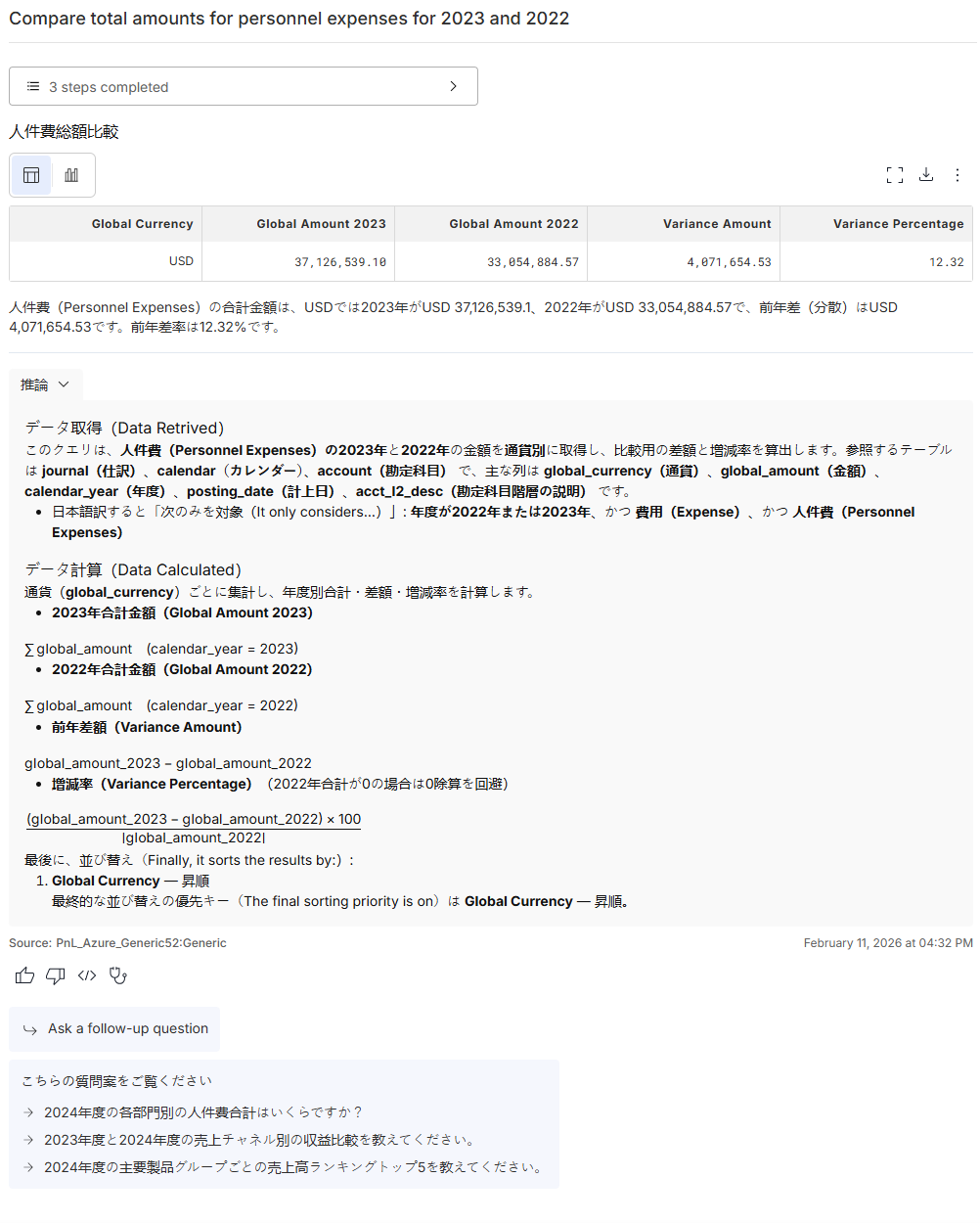
You can ask questions in any supported language, regardless of your user-preferred language setting, but the answer is in your user-preferred language. For example, if your preferred language is set to Japanese and you ask questions in English, hila responds in Japanese.
Scope of language support
The language you select for interactions applies to the following:
- Titles
- Response summaries
- Response explanations
- Error messages
- Suggested questions
Note: Language settings do not impact the text in tables and charts. hila shows table and chart results based on the language of the value strings in the data source. For example, if the value strings in the data source are in Spanish, hila shows the table and chart results in Spanish, even if you have selected Japanese in the language settings.
Examples
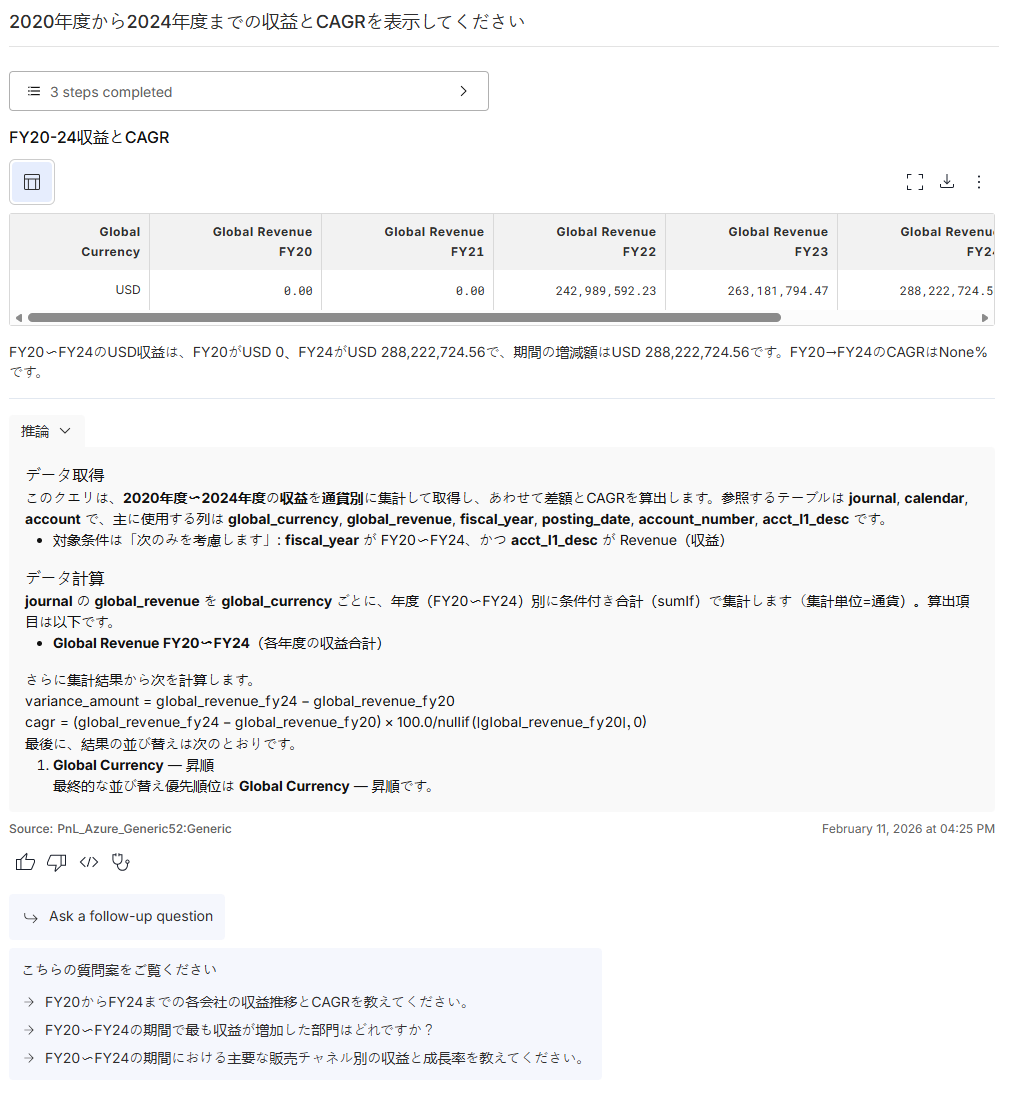
With the preferred language set to Japanese, this interaction shows a question in Japanese and the answer in Japanese.
With the preferred language set to Japanese, this interaction shows a question in English and the answer in Japanese.