



hila Conversational Analysis quick setup
This topic shows how to set up hila Conversational Analysis (hCA), starting with a new VM and ending by getting an answer to a query against your financial data.
Each section shows the simplest way to accomplish that task, but more detailed instructions for alternate methods are available in the links to other topics.
1. Create a VM
Create a VM on your cloud provider with the following minimum specifications:
CPUs 16 RAM 64 GB Disk 500 GB OS Ubuntu 24.04 LTS Networking • HTTPS (for end user access)
• SSH enabled (or similar method so you can upload the script to the VM)
- Note the IP address for use in the installation process.
- For convenience and consistency, create the VM with the username
ubuntu. If you use a different username, replaceubuntuwith your username in the following steps. - To create an ssh key to access the VM:
- In a terminal on your local machine, run
ssh-keygento create a new key pair. - Press enter to accept the default location for the key pair, or enter a filename.
- Press enter to accept the default passphrase, or enter a passphrase.
- Press enter to confirm the passphrase.
- The public key is saved in the
~/.sshdirectory with the default name or the name you provided. - Open the public key file and copy the contents to the ssh public key field when you create the VM.
- In a terminal on your local machine, run
For full documentation for creating a VM and installing hila, see Install hila.
2. Install third-party tools and whitelist URLs
See Third-party tools and whitelist URLs for details.
3. Install hila
-
From a terminal on your local machine,
sshinto the VM, making sure to editYOUR_PRIVATE_KEY_FILEto point to your private key file andIP_ADDRESSto match your VM’s IP address:ssh -i "~/.ssh/<YOUR_PRIVATE_KEY_FILE>.key" -o StrictHostKeyChecking=no ubuntu@<IP_ADDRESS> -t bash -
Set the following environment variables:
export api_key=<YOUR API KEY> export version=HILA_VERSION_TO_INSTALL # (Current release is 4.3.0-r.1) export domain=YOUR_DNS_DOMAIN # (excluding cluster name) export datadir=/home/ubuntu/data # (if not set, defaults to /swapfile) export cloud_provider=CLOUD_PROVIDER # (aws, azure, gcp, or oci) export admin_email=YOUR_EMAILNote: The email is important because it is used to send a one-time login email to the admin user. The admin then sets up a password as then has access to hila. -
Pull the latest install scripts from Vianai’s repository:
wget --header "x-api-key:$api_key" -q -O - 'https://webservices.launchpad.vianai.site/v1/stacks-installers' | tar -xzv -
Run pre-check
-
Run the pre-check script to gather the VM details necessary to verify it is suitable to install Conversational Analysis. This command also registers a DNS entry and generates a certificate.
sudo ./cluster-creation-scripts/k3s_vm_precheck.sh api_key=$api_key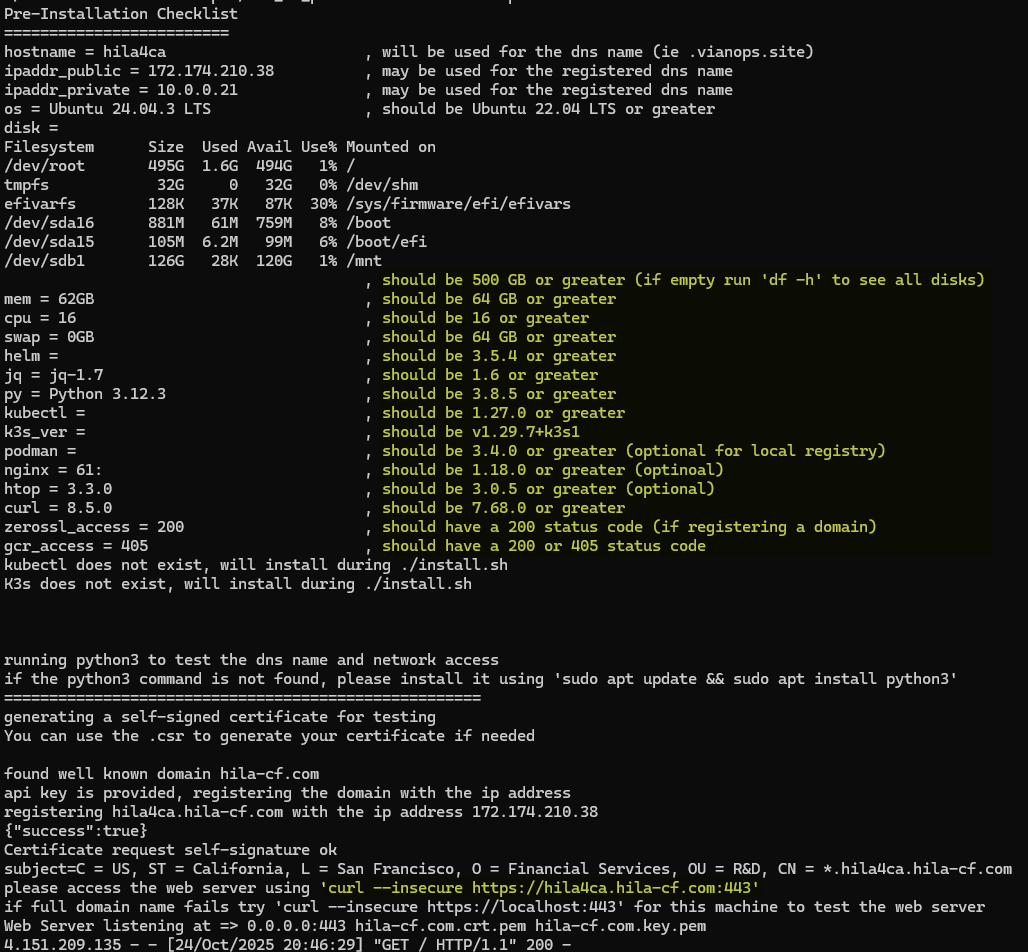
- The recommended values are in the column on the right.
- If you don’t run with
sudo, you will get apermissions deniederror.
-
In another shell, run the
curlcommand at the bottom of the pre-check output to verify the DNS and certificate were created successfully. You must run it in another shell because the current shell is busy running the pre-check script. -
Type
Ctrl-Cto exit the pre-check script when you see thecurlcommand output shows the DNS and certificate are correct.
-
-
Install hila
-
Install hila by running the following command:
./cluster-creation-scripts/k3s-microstack.sh vm_setup_only=run cloud_provider=$cloud_provider custom_cert=no custom_repo=no cluster_name=$HOSTNAME admin_email=$admin_email datadir=$datadir dns_domain=$domain api_key=$api_key image_branch=$version-
If you are prompted for the ssh public key value, enter it. If you are prompted for any other values, accept the defaults by pressing Enter.
-
After this command finishes, it can take up to 30 minutes for you to get the one-time login email.
-
To monitor the progress of the pod install, open a new terminal window to the VM and enter the following command:
watch -n 2 kubectl get pods -
You can also monitor when the certificate goes true in another terminal window with this command:
watch -n 2 kubectl get certificates -A
-
-
When the install is complete, you will receive an email with a one-time login link.
-
Click the link in the email to set up your password.
-
After entering a new password, click Back to sign in page.
-
Log in with your username and password. Your username is the part of your email address before the “@” symbol.
-
4. Install vianctl and extract example scripts
-
Download vianctl install files:
wget --content-disposition --header "x-api-key:$api_key" "https://webservices.launchpad.vianai.site/v1/sdk" -
Install the vianctl whl file:
pip install <VIANOPS_CLIENT_version*.whl> --break-system-packages -
Add vianctl to the path:
export PATH=/home/<USERNAME>/.local/bin:.:$PATHFor example, if your username is
ubuntu, the command is:export PATH=/home/ubuntu/.local/bin:.:$PATH -
Add stack name to vianctl config, giving a stack name and your stack’s DNS domain:
vianctl config add-stack <STACK_NAME> https://webservices.<YOUR_CLUSTER>.<YOUR_DNS_DOMAIN>For example:
vianctl config add-stack hila_4.3 https://webservices.valuecorp.vianai.site -
Authorize vianctl, giving your credentials when prompted:
vianctl auth login -
Extract examples, giving a DIR_NAME where to save the files, such as
examples.vianctl examples extract --target-dir <DIR_NAME>For example:
vianctl examples extract --target-dir examples
5. Configure LLMs
The quick way to configure LLMs is by running the metadata-endpoint-key.sh script in the examples directory you extracted in the previous step. Be sure to add your model URL, API token, and LLM type.
The script uses vianctl commands, so before you run it, you need to authorize vianctl on your stack with your credentials:
vianctl auth login
Then run the script as follows, replacing the placeholders with your actual values:
metadata-endpoint-key.sh endpoint=<URL_TO_MODEL> api_key=<YOUR_API_TOKEN_FOR_MODEL> type=<chat|instruct|turbo|etc.> model_name_ext=<MODEL_NAME_EXTENSION>
For example:
metadata-endpoint-key.sh endpoint="https://api.openai.com/v1/chat/completions" api_key="sk-xxxxxxxxxxxxxxxxxxxxxxxxxxxxxxxx" type="chat" model_name_ext="gpt-5-chat"
metadata-endpoint-key.sh endpoint="https://api.opanai.com/v1/chat/completions" api_key="sk-xxxxxxxxxxxxxxxxxxxxxxxxxxxxxxxx" type="chat" model_name_ext=azure-gpt-5-chat"
- type — the type of LLM, usually the last part of the model name. For example, for model
gpt-5-chat, the type ischat. - model_name_ext — the model name extension, usually the full model name without the version number. For example, for model
gpt-5-chat, the model name extension isgpt-5-chat. For Azure models, it isazure-<model_name>; for example,azure-gpt-5-chat.
For this release, the supported LLMs are:
- OpenAI gpt-5-chat: type=
openai-gpt5-chat - OpenAI gpt-4o: type=
openai-gpt4o - Azure OpenAI gpt-5-chat: type=
azure-openai-gpt5-chat - Azure OpenAI gpt-4o: type=
azure-openai-gpt4o
The supported embedding models are:
- OpenAI text-embedding-3-large: type=
openai-embedding-3-large - Azure OpenAI text-embedding-3-large: type=
azure-openai-embedding-3-large
For more details on configuring LLMs, see Configure LLMs.
6. Create a data connection
The quick way to configure a data connection is to run the following vianctl command, giving your connection parameters. Be sure to replace the placeholders with your actual values.
vianctl externalconnections create --name <NAME_OF_CONNECTION> --description "<DESCRIPTION_OF_CONNECTION>" --type <DB_TYPE> --url "<YOUR_URL>"
Note: The format for the --url parameter follows the SQLAlchemy format for your database type. See SQLAlchemy Database URLs for details.
Examples for popular databases:
vianctl externalconnections create --name my_snowflake_connection --description "Snowflake connection" --type snowflake --url "snowflake:<CREDENTIAL_STRING>"
vianctl externalconnections create --name my_bigquery_connection --description "BigQuery connection" --type bigquery --url "bigquery:<CREDENTIAL_STRING>"
vianctl externalconnections create --name my_oracle_connection --description "Oracle connection" --type oracle --url "oracle:<CREDENTIAL_STRING>"
vianctl externalconnections create --name my_azuresql_connection --description "Azure SQL connection" --type azuresql --url "mssql+pyodbc:<CREDENTIAL_STRING>"
vianctl externalconnections create --name my_databricks_connection --description "Databricks connection" --type databricks --url "databricks:<CREDENTIAL_STRING>"
For more details on creating a data connection, see Create a data connection.
7. Configure data structure
hila requires a number of configuration files to define your data schema. To set up those files, see Configure your data structure.
8. Create metadata
-
In the vianctl examples directory, navigate to
structured/hca. -
Copy the configuration files you created in the previous step to the
hca/configurationsdirectory. -
Run the following command to create the metadata.
hca_demo.sh DB_NAME=<NAME_OF_CONNECTION> PROJECT_NAME=<NAME_OF_YOUR_PROJECT> METADATA_NAME=<NAME_OF_YOUR_METADATA>DB_NAMEis the name of the data connection you created earlier in this procedure.PROJECT_NAMEis the name of your project. It appears in the monitoring app under the list of projects.METADATA_NAMEis the name of your metadata. It appears in the hila UI in the list of data sources and in the hila monitoring app under the list of metadata for your project.
For example:
hca_demo.sh DB_NAME=ext_snowflake PROJECT_NAME=financial_analysis METADATA_NAME=financial_metadata -
After this script finishes, a data source appears in the hila UI under Data sources.
9. Create users and set permissions
Create users and set their permissions so they can access hila and the various data sources available to them.
One permission you must set for each user is the user preference that defines which country code the user is approved to access.
vianctl userpreferences set --user_id <USERNAME> --system vianai --module db_session_context --name company_code --value <COUNTRY_CODE_VALUE> --description "Set company code"
For example, to set the country code to USA for user jdoe:
vianctl userpreferences set --user_id jdoe --system vianai --module db_session_context --name company_code --value USA --description "Set company code to USA"
To create users, see Users, roles, and permissions.
To set permissions, see Set permissions.
10. Test the metadata
-
In the hila UI, select the data source you created in the previous step.
-
In a conversation window, sample questions should appear when you click in the query box.
-
Ask several questions to make sure the system is working.
Other tasks
- Upgrade hila
- Monitor hila system health